

- Joined
- May 20, 2016
- Messages
- 149
- Points
- 28
The following tips will guide you to upload files from your computer to Windows VPS without using the 3rd services as Mediafire or Dropbox
Step 1:
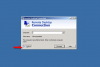
Open the Remote Desktop application, select Option
Step 2:
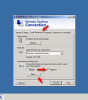
Select Tab Local ressources like in the picture, select Clipboard and click on More to display the custom
Step 3:
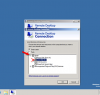
1 Pop up will appear, allowing you to choose how you want to connect the drive to the VPS (the drive will show up as one shared drive in My Computer on the VPS)
Step 4:
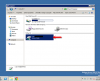
Press OK, from now on you can connect directly to your hard drive on your home computer by going to My Computer> select the drive, and then perform operations such as drag and drop, copy or cut conveniently
Good luck!
Step 1:
Open the Remote Desktop application, select Option
Step 2:
Select Tab Local ressources like in the picture, select Clipboard and click on More to display the custom
Step 3:
1 Pop up will appear, allowing you to choose how you want to connect the drive to the VPS (the drive will show up as one shared drive in My Computer on the VPS)
Step 4:
Press OK, from now on you can connect directly to your hard drive on your home computer by going to My Computer> select the drive, and then perform operations such as drag and drop, copy or cut conveniently
Good luck!